Quickstart
From sign-up to your first command on a real device in about five minutes. 
You need
A Linux device with one of the supported systems, internet
access and sudo. A Raspberry Pi works just as well as a server or a VM.
1 Create your account
- Open www.kinuxota.com/signup and fill in Username, Email, First Name, Last Name, Password (at least 12 characters) and Confirm Password. Accept the terms, click Sign up.
- Click the link in the verification email (valid for 24 hours). You can sign in only after this.
- Sign in at www.kinuxota.com/login with your email or username.
The Overview page greets you with a Get started checklist: the next three steps.
2 Add the device
Devices → Add device → type a Device name (say kiosk-lobby) → Add device.
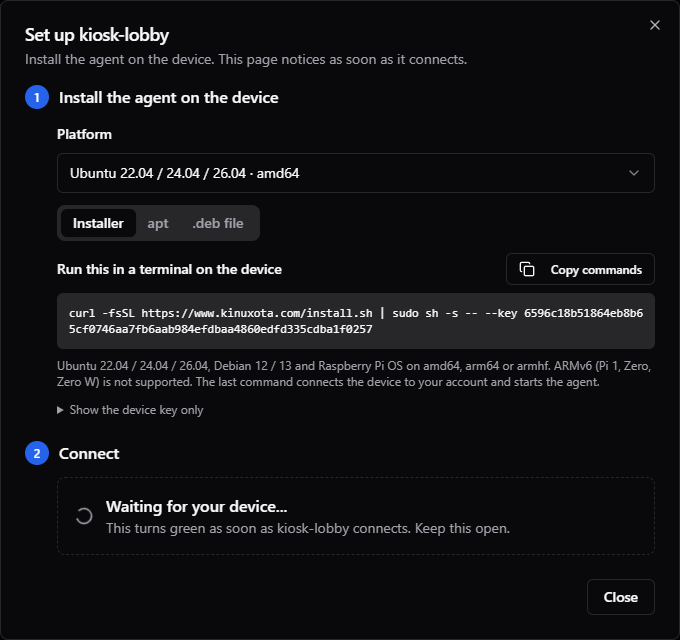
3 Install the agent
Pick the device's Platform, keep the Installer tab, click Copy commands and paste into a terminal on the device:
The dialog fills in the key for you. The installer checks the system, adds the KinuxOTA apt
repository, installs the kinuxota package and connects the device.
Prefer apt or a .deb file?
The dialog's apt and .deb file tabs have the other ways in. All three are explained in Install the agent.
4 Watch it come online
The dialog shows Waiting for your device... and turns green as soon as the agent connects, usually within seconds. In Devices it shows ONLINE.
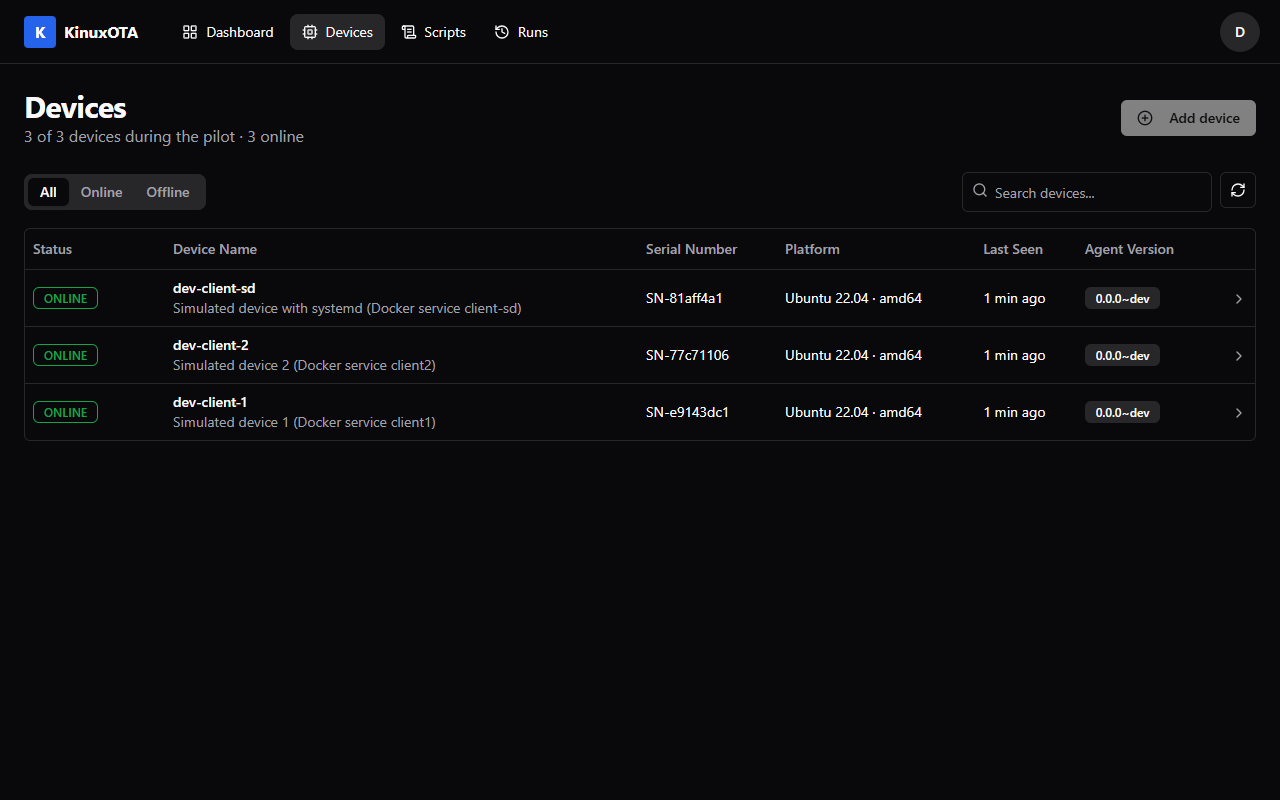
Not online after a minute?
Run sudo kinuxota status on the device, then see Troubleshooting.
5 Run your first command
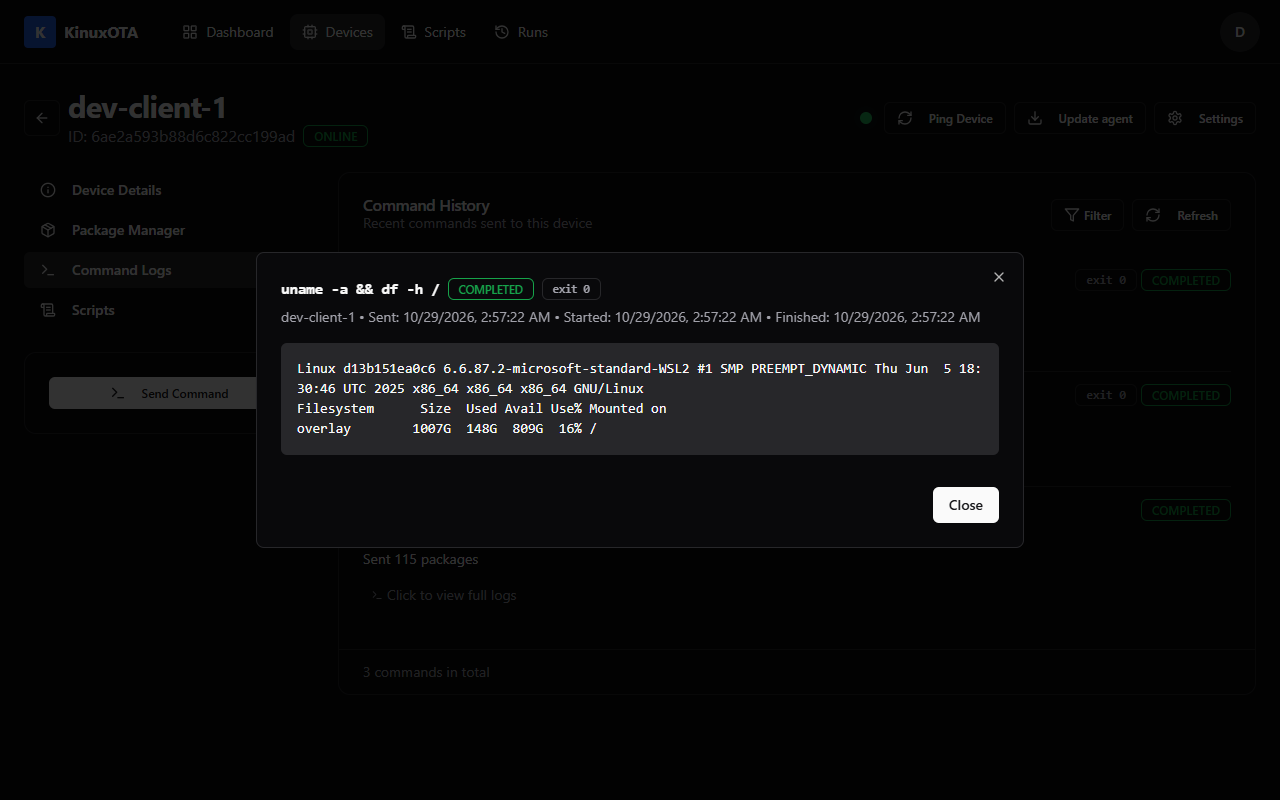
Open the device, click Send Command, type uname -a and click Send Command. Open Command
Logs and click the command: its output and exit code.
Or click Run your first script in the set-up dialog: it creates the Collect diagnostics script from its template and opens it for this device.
 You're set. Next:
- Concepts: devices, commands, scripts, runs
- Scripts guide: templates, files, parameters, 100 devices
- Update the agent: one click, through apt