Dashboard guide
The dashboard is at www.kinuxota.com. Its menu has Dashboard, Devices, Scripts and Runs; the avatar menu has Settings and Logout.
Overview
The Dashboard entry opens Overview: the number of Devices, Online and Offline, your devices, and the last 5 script runs. A new account also sees the Get started checklist: add a device, install the agent and connect, run your first script. Hide getting started closes it.
Devices
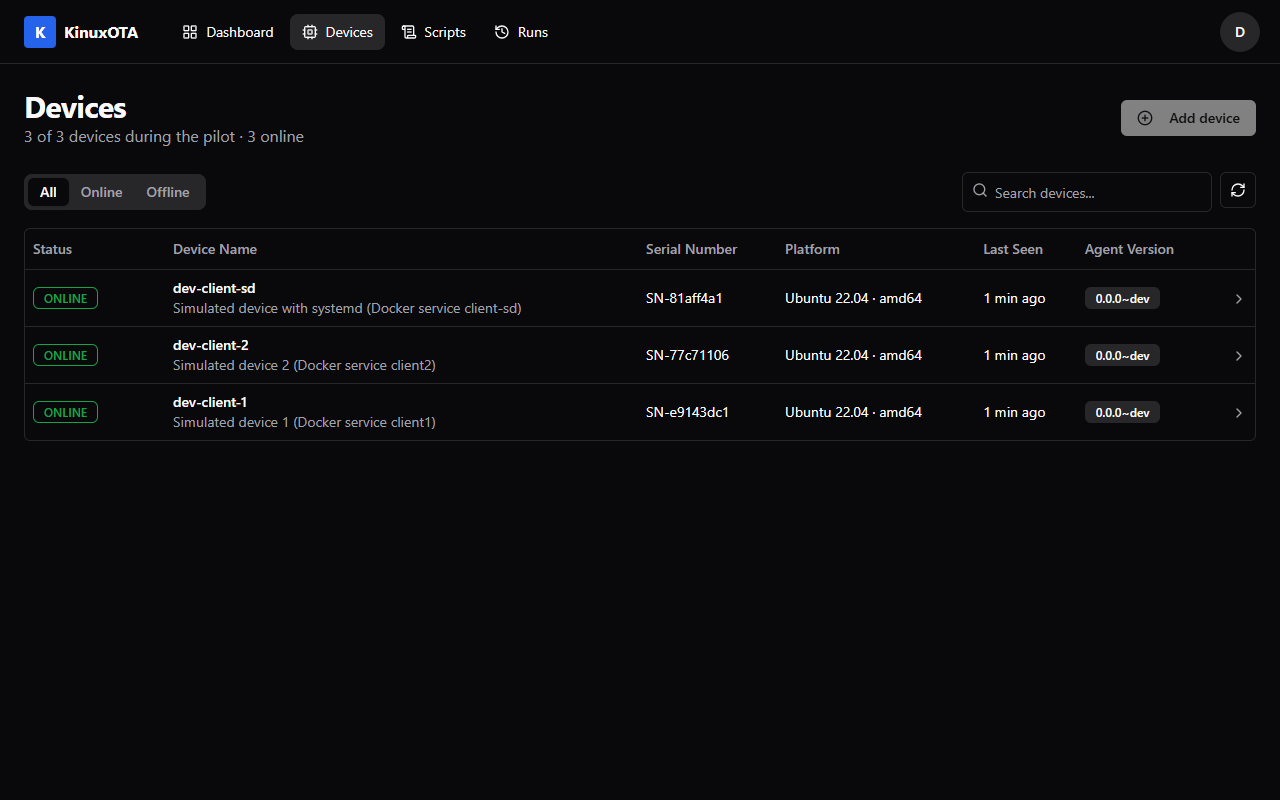
The list shows Status, Device Name (with its description), Serial Number, Platform, Last Seen and Agent Version. The tabs All, Online and Offline filter it, and Search devices... matches the name, ID or serial number. It refreshes every 10 seconds.
Add device asks for a Device name; Add serial number, model or description shows the optional fields. The serial number must be unique in your account. The next step shows the install commands: see Install the agent. With 3 devices (the pilot limit) the button is disabled.
A device
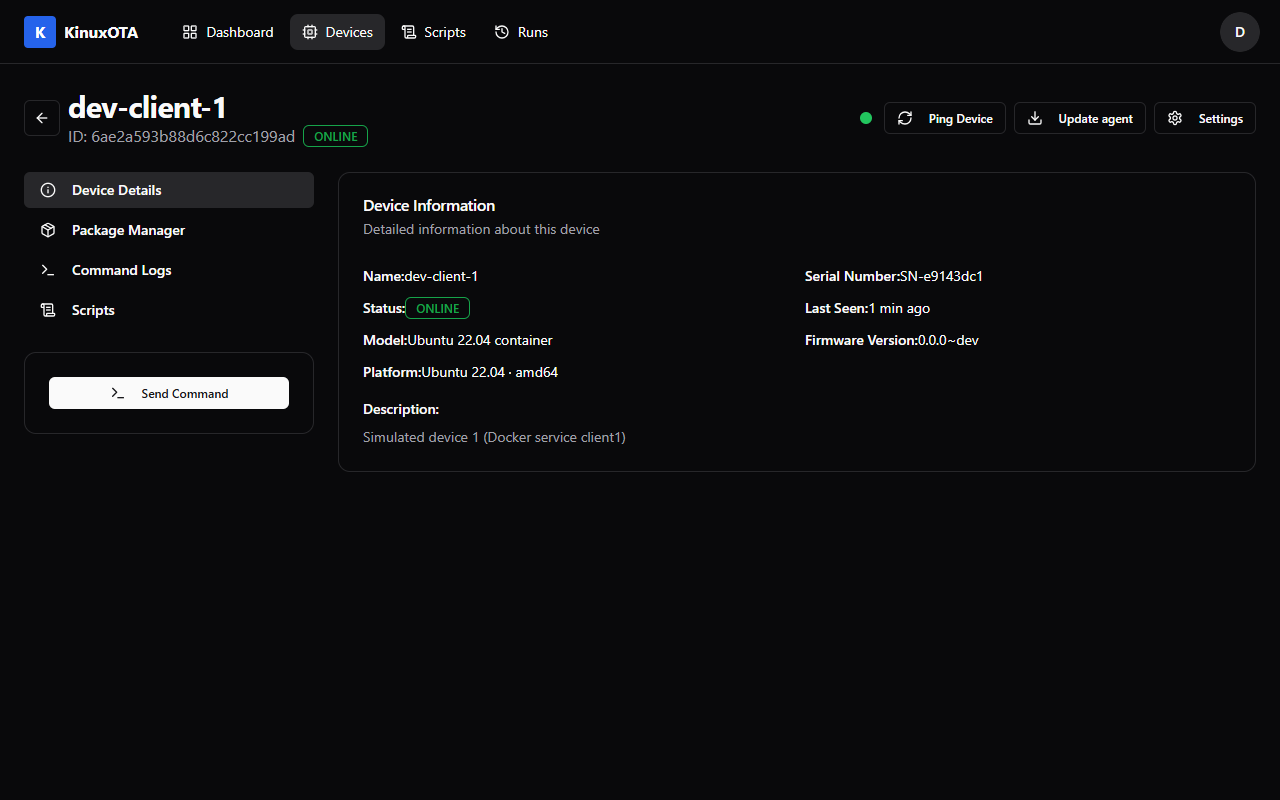
The header shows the name, ID and status, and three buttons:
- Ping Device asks the device for its health and shows it, for example
Healthy · CPU 3% · Memory 41% · Disk 22% · Up 2h 5m. - Update agent installs another agent version: see Update the agent.
- Settings edits the Name, Model and Description. Its Danger zone deletes the device: type the device name, then Delete this device. The device's key stops working at once, and its commands and script-run history are deleted with it.
The sections:
Device Details. Name, serial number, status, last seen, model, agent version, platform and description.
Package Manager. The installed apt packages with their versions, sorted by name, 100 at a time (Show more for the next ones, up to 500; search by name to find any other). Refresh List asks the device for a new list. Install Package installs up to 10 packages (an optional version each). Update installs another version of one package; Remove removes it; tick several and Remove Selected removes them together. The date shown is when the dashboard received the list.
Command Logs. The latest 200 commands sent to the device, newest first, 10 per page, refreshed every 5 seconds: the command, its exit code and status, when it was sent and finished. Filter narrows it by command type, status or date. Click a command to see its full output (it streams while the command runs) and to cancel it.
Agent Log. What the agent on the device logged, newest first: time, level and message. The
agent uploads its log after 100 new lines or 6 hours, and at once when you send the get-logs
command. Choose a level to see only that level and the more severe ones; Load older lines goes
further back. Lines are kept for 30 days.
Scripts. Run a script on this device (Run, or a recent script), and the device's script-run history with each run's output. Output and status show up as the device sends them.
Send Command opens a dialog: the Command and an optional Timeout in seconds (1 to 86400, default 3600). The command runs as root on the device.
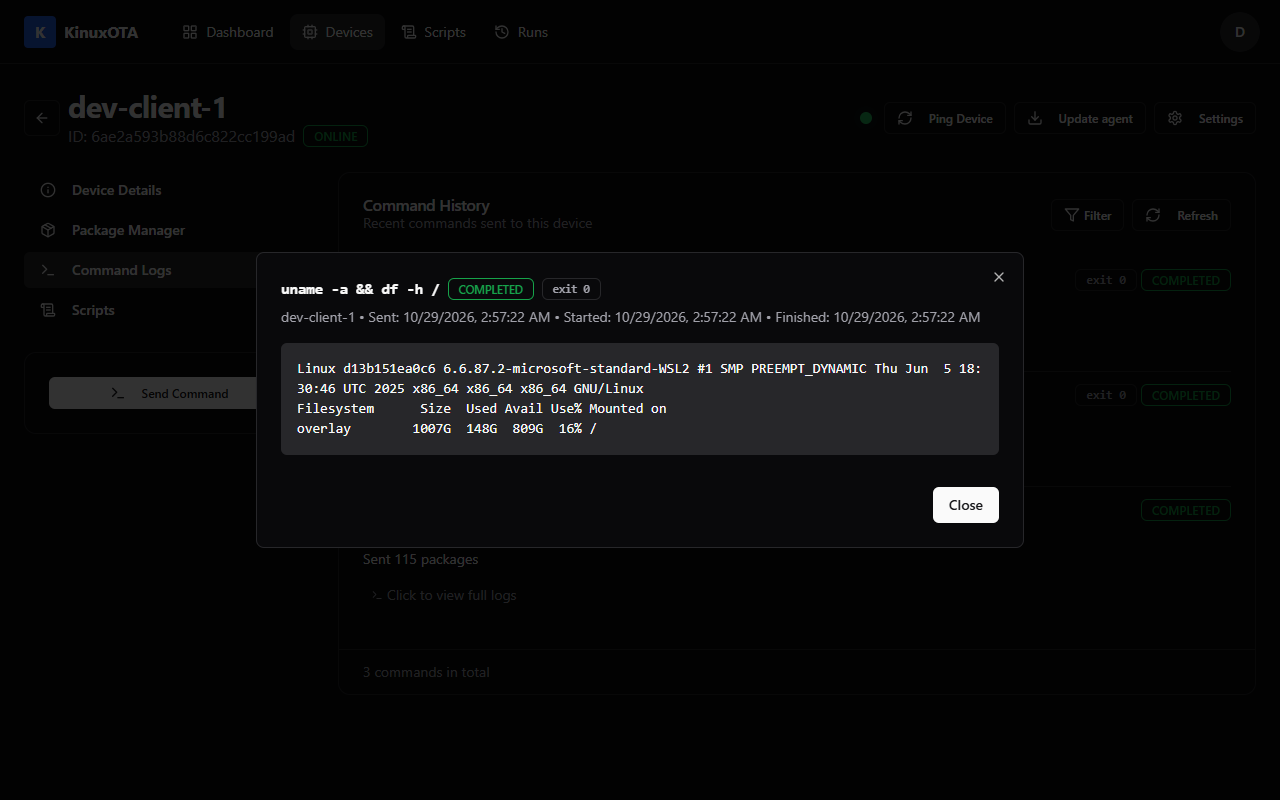
Cancel stops a command: one that is still waiting is cancelled at once, a running one is asked to stop. Package installs and removals and agent updates cannot be cancelled once they have started.
Scripts and Runs
Scripts is your script library; Runs lists every run with filters by script, device, status and date. See the Scripts guide.
Settings
- Profile: your name and email (read-only; contact support to change them) and Download my data (a JSON export of your account).
- Security: Change Password (signs out your other sessions) and Sign out everywhere.
- Deletion: Delete Account deletes the account with its devices, commands and output, packages lists, scripts, runs and files.